Discover how to create your first QR code with QRUpp in minutes. Learn the difference between static and dynamic codes, customise designs, and explore powerful features like tracking, AI styles, and short links.
New to QRUpp? This quick guide shows you how to create your first QR code in minutes, explains static vs dynamic codes, and highlights options like AI styles, tracking, and short links.
What you can do with QRUpp
- Create Static QR codes instantly (no account required) for links, WiFi, email, SMS, and more.
- Create Dynamic QR codes (short links you can edit and track later).
- Generate AI QR codes that blend brand-worthy visuals with reliable scanning.
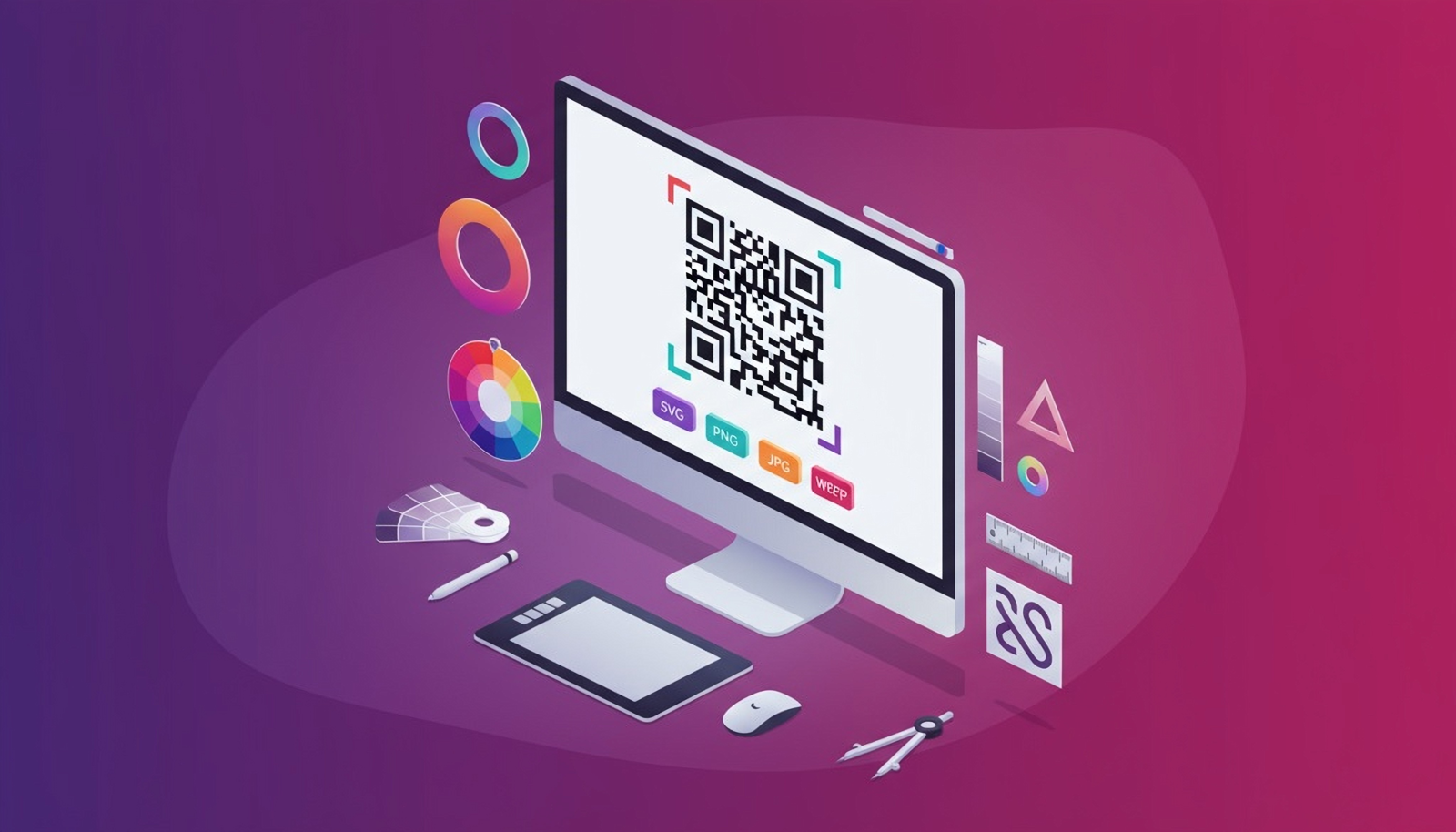
- Customise colours, frames, logos, and download as SVG/PNG/JPG/WEBP (or print to PDF).
Quick start: make your first QR code
- Open the generator: URL QR code.
- Enter a meaningful name and your destination URL.
- Customise style (colours, frame, optional logo) and preview in real time.
- Click Generate, then download your code in the format you need.
Static vs Dynamic: which should I choose?
Static
- Encodes the final URL directly—simple and fast.
- Best when the destination won’t change.
- No account required.
Dynamic
- Points to a short link you control—edit the destination later without reprinting.
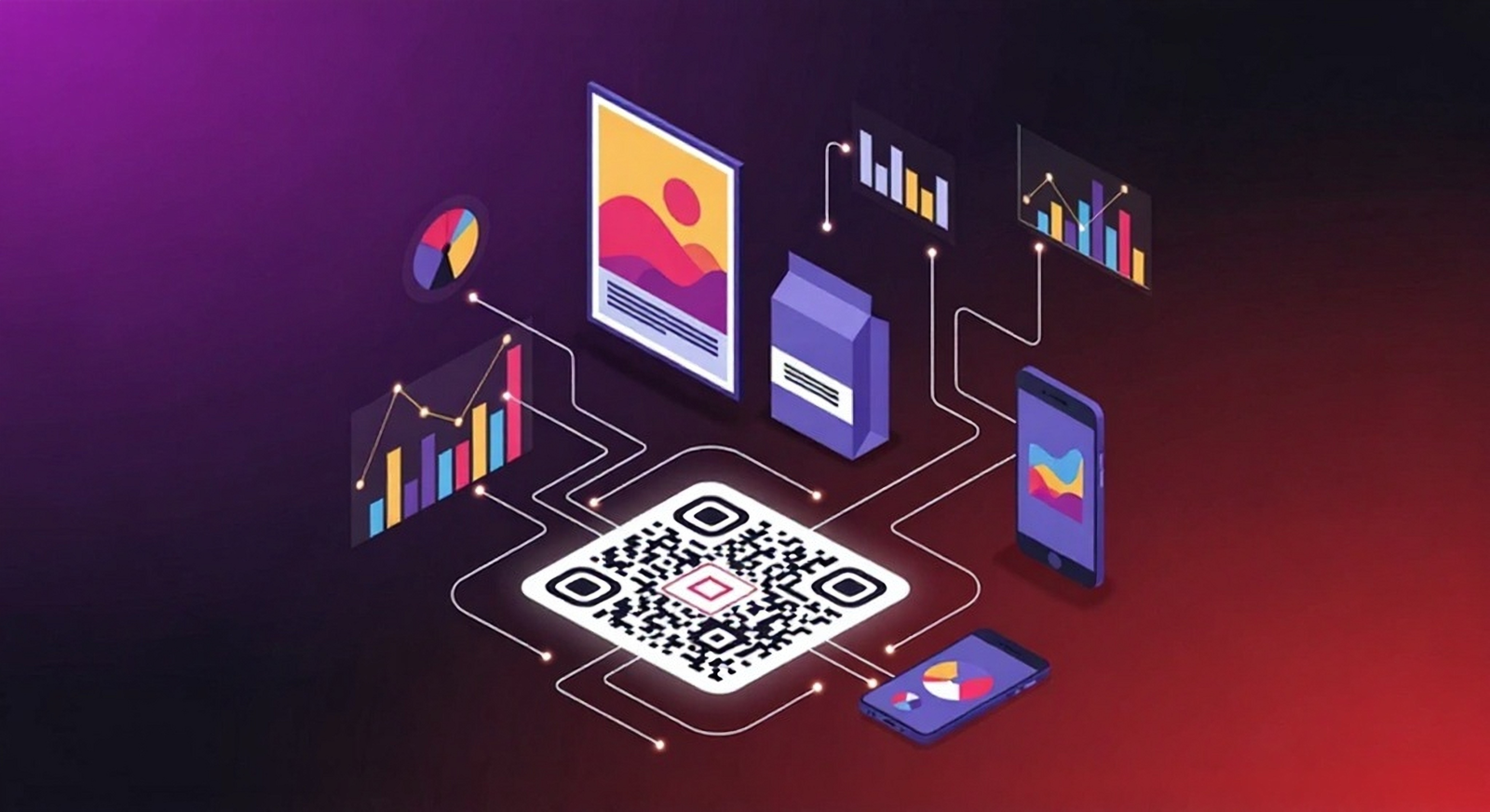
- Track scans (time, device, rough location) and add options like scheduling, geo/device targeting, UTM parameters, password protection, and app linking.
- * ACCOUNT REQUIRED *
Make it stand out with AI QR codes
AI QR codes combine your destination with AI-generated imagery for a unique, brand-friendly look—while staying scannable.
- Great for campaigns, packaging, and events.
- Designed for clear contrast and reliable scanning.
- Supports URL and Dynamic destinations.
Learn about AI QR codes * ACCOUNT REQUIRED *
Which download format should I use?
- SVG — best for print at any size (infinitely scalable).
- PNG/JPG — general purpose images for docs and presentations.
- WEBP — modern, lightweight format for the web.
Best practices for reliable scans
- Keep strong contrast (dark code on light background).
- Leave a clear quiet zone (padding) around the code.
- Test at your smallest print size—aim for 25–35 mm minimum.
- Avoid glossy or highly textured surfaces where possible.
Next steps
- Explore all QR code types and pick the right one for your use case.
- Use QRUpp’s QR reader to test any code image or scan prints with your camera.
- Upgrade to Dynamic for editing, tracking, and advanced controls.