Create vCard QR codes that save contact details to a phone in one scan. Add name, job title, email, phone, website, address and more. Works with iPhone Contacts, Android, Google Contacts and Outlook.
Create vCard QR codes that save contact details to a phone in one scan. Add name, job title, email, phone, website, address and more. Works with iPhone Contacts, Android, Google Contacts and Outlook.
What is a vCard QR Code?
A vCard QR code encodes your contact details so they open directly in the user’s contacts app. One scan lets people save your name, job title, phone numbers, email, website and address without typing.
Works with: iPhone Contacts, Android Contacts, Google Contacts, Outlook and most modern CRMs.
How vCard QR Codes work
A vCard QR code stores a .vcf (vCard) text block inside the QR. When scanned, the device recognises the format and offers to add the contact to the user’s address book. The same code works across iOS, Android and desktop contact managers.
Create a vCard QR Code in QRUpp
- Either click Generate QR codes from our homepage, or (if you have an account) log in and click QR codes in the left‑hand menu, then Create QR.
- Select vCard at the top of the page.
- Enter a meaningful name for your QR code.
- Enter your vCard details — Name, Email, Website, Job Title, Address, Phone numbers, Social profiles, etc.
- Choose the style, colours, frame, foreground/background images, and optional logo.
- The preview updates in real time as you adjust settings.
- Click Generate to save your QR code.
- Download as SVG, PNG, JPG, or WEBP, or print to hard copy/PDF.
Requires an account.
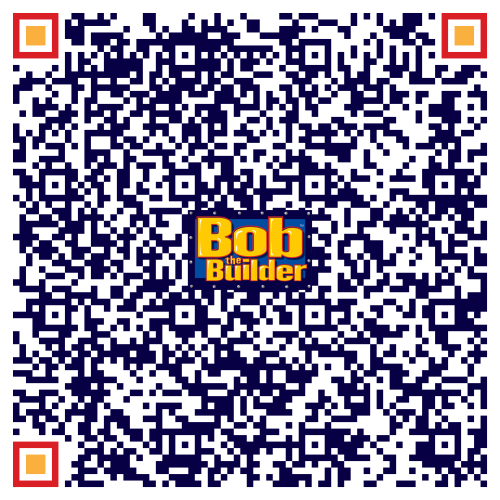
Example Output
Best uses
- Printed business cards: add-to-contacts in one scan.
- Conference badges: make networking faster and error-free.
- Email signatures: include a scannable contact code.
- Product packaging & docs: provide support or sales contacts.
- Sales collateral: link your direct details on brochures and pitch decks.
Tips for effective contact sharing
- Use a professional email and phone you intend to keep long-term.
- Keep fields concise and current (avoid outdated titles or numbers).
- Include only the channels you actively monitor.
- Test on iPhone and Android before printing at scale.
- For teams, align a consistent naming format (e.g., “First Last, Job Title | Company”).
Unlimited QR code scans - always
vCard QR Code: FAQs
Yes. vCard is widely supported by iPhone and Android devices, as well as major contact managers such as Google Contacts, Outlook and most modern CRMs.
You can safely add a logo to the QR design itself. vCard photos are not consistently imported across all devices, so it’s better to rely on a branded QR code and profile page instead of embedding a contact photo.
A standard vCard QR code is fixed once printed. To change your details you’ll need to generate a new QR code. If you want an updatable destination, use a Dynamic URL QR code that points to a hosted profile or contact page.
Use SVG for crisp print at any size, PNG/JPG for general digital use, and WEBP for modern web performance and smaller file sizes.
No. QRUpp uses the modern vCard standard for best compatibility across today’s contact apps and devices.
Get started
Create a vCard QR code that saves your complete contact details in one scan.
Not sure which QR code you need? Read our complete guide to QR codes for business to understand how they work and when to use each type.