Generate email QR codes that open a pre-filled message with recipient, subject, and body in one scan. Ideal for support, enquiries, bookings, and feedback - fast, clear, and customer-friendly.
Create Email QR codes that open a pre-filled email with recipient, subject and message in a single scan. Perfect for support, feedback, quotes and general enquiries from print or screens.
What is an Email QR Code?
An Email QR code encodes a mailto: link so that when someone scans it,
their default email app opens with the recipient, subject and message already filled in.
This reduces friction and makes it much more likely that people will actually send the email.
- Recipient: the email address messages should be sent to
- Subject: a clear topic line (e.g. “Booking enquiry”)
- Message: a pre-written template or starting point
How Email QR codes work
- You create a QR code that encodes a
mailto:link with your parameters. - When the QR is scanned, the device opens the default email app.
- The email is pre-populated with the address, subject and message you provided.
The user can review and edit the email before sending, but most of the work is already done, making it ideal for quick contact from posters, flyers, receipts or packaging.
Create an Email QR Code in QRUpp
- Either click Generate QR codes on our homepage, or (if you have an account) log in, click QR codes in the left-hand menu, then Create QR.
- Select Email at the top of the page.
- Enter a meaningful name for your QR code.
- Enter the email address, the subject and the message to be sent.
- Choose the style, colours, frame, foreground/background images, and optional logo.
- The preview updates in real time as you adjust settings.
- Click Generate to save your QR code.
- Download as SVG, PNG, JPG, or WEBP, or print to hard copy or PDF.
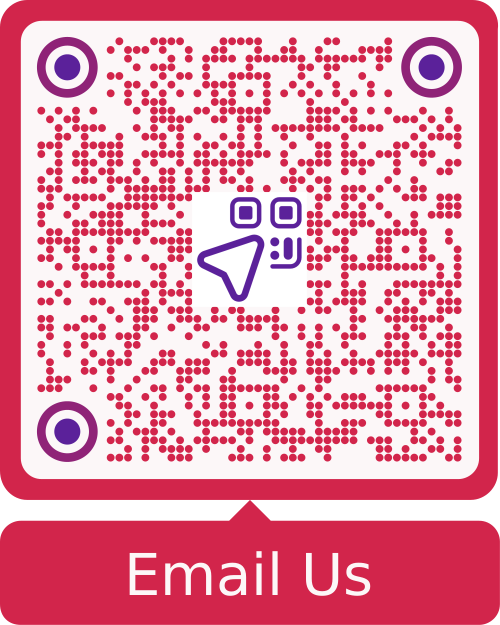
Example Output
Best uses
- Customer support: let customers email support with one scan.
- Sales & quotes: pre-fill enquiry emails from brochures or proposals.
- Events: collect feedback or questions from programmes and signage.
- Retail & hospitality: invite reviews, booking requests or complaints.
- Printed materials: add easy contact points to flyers, posters and packaging.
Tips for effective Email QR codes
- Keep the subject clear so recipients and your team can triage emails quickly.
- Use a short, friendly message that users can easily tweak if needed.
- Test on multiple devices and email apps (Mail, Gmail, Outlook, etc.).
- Consider routing to a shared inbox (support@, sales@) instead of a personal address.
- Add a short call-to-action near the code (e.g. “Scan to email our team”).
Unlimited QR code scans - always
Email QR Code: FAQs
Yes — almost all modern devices support mailto: links and will open
the user’s default mail client. The app used (Mail, Gmail, Outlook, etc.) depends
on the user’s own device settings.
Yes — most mail clients accept comma-separated addresses in the
mailto: link, including support for CC and
BCC fields.
Some older devices or apps may truncate very long messages. For the best reliability, keep the message clear and concise, and link out to longer content if needed.
mailto: QR codes do not provide scan analytics. If you need
tracking, use a Dynamic URL QR code pointing
to a contact form instead, and measure conversions there.
Use SVG for sharp print at any size. Use PNG or JPG for general use, and WEBP for modern, lightweight performance on the web.
Get started
Open the Email QR generator, enter your recipient, subject and message, and let people email you with a single scan.
Not sure which QR code you need? Read our complete guide to QR codes for business to understand how they work and when to use each type.