Create Event QR codes that add a calendar invite in one scan. Encode title, location, URL, start/end times, and up to two reminders. Perfect for posters, tickets, programs, and venue signage.
Create Event QR codes that add a calendar invite in one scan. Encode title, location, URL, start/end times, and up to two reminders. Perfect for posters, tickets, programs, and venue signage.
What is an Event QR Code?
An Event QR code encodes a calendar VEVENT so scanning adds your event to the user’s calendar. Include the title, location, start/end times, URL, and reminders to boost attendance and reduce no-shows.
How Event QR Codes work
QRUpp generates a standards-based VEVENT payload that calendar apps recognise. When scanned, the device offers to add the event with your specified details and reminders.
Create an Event QR Code in QRUpp
- Log in to your account and click Links in the left hand menu, then Create Link.
- Select Event at the top of the page.
- Enter a meaningful name for your QR code.
- Enter the details for your Event such as Event name, GEO Location, URL, Start and End date and times and Reminder date and times (up to 2).
- Choose the style, colours, frame, foreground/background images, and optional logo.
- The preview updates in real-time as you adjust settings.
- Click Generate to save your QR code.
- Download as SVG, PNG, JPG, or WEBP or print to hard copy or PDF.
Requires an account.
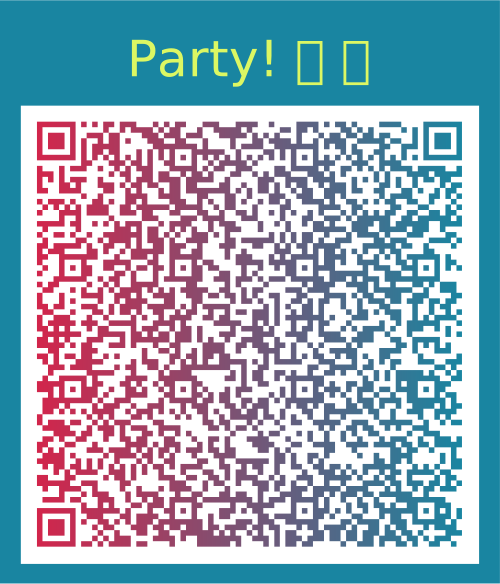
Example Output
Best uses
- Posters & flyers: pre‑event promotion with instant add‑to‑calendar.
- Tickets & wristbands: quick access to time, venue and info page.
- Programs & schedules: sessions, workshops and break‑outs.
- Venue signage: lobby, entrances, registration desks.
- Email & print invites: reduce friction and improve attendance.
Tips for higher attendance
- Use a clear title and include a short info URL.
- Set reminders (e.g., 1 day and 1 hour before).
- Confirm time zone and venue GEO location for accurate maps.
- Add a concise description with essentials (entry info, what to bring).
- Test on iOS, Android and desktop calendar apps.
Unlimited QR code scans - always
Event QR Code: FAQs
Event QR codes generated by QRUpp use standard calendar data
(VEVENT) which is supported by most modern calendar apps,
including Apple Calendar, Google Calendar, and Outlook. On scan, users
are typically shown an “Add to calendar” screen.
If you use a static Event QR code, details are fixed once printed. To keep flexibility, create your event as a Dynamic link and point your Event QR to that short link, so you can edit the landing page or event details without reprinting.
The event is generated using the date and time you enter when creating the link. Users’ calendar apps then interpret this based on their local device settings. For time-sensitive events, clearly state the time zone (e.g. “10:00–12:00 (UK time)”) in the event title or description.
Yes. When you create an Event QR link in QRUpp you can add up to two reminder times. When users add the event to their calendar, those reminders are included (subject to how their calendar app handles alerts).
Use SVG for crisp results at any size on posters, signage, and programmes. Use PNG/JPG for general use, and WEBP for fast loading on the web.
Get started
Boost attendance with an Event QR code that adds your date, time and reminders in one scan.
Not sure which QR code you need? Read our complete guide to QR codes for business to understand how they work and when to use each type.