
QR Code Type
URL QR Codes
Create URL QR codes with QRUpp to open any web link instantly – landing pages, videos, forms, files, and more. Customise style and logo, preview in real time, and download print-ready files.
URL QR Codes
What is a URL QR Code?
A URL QR code opens a web link when scanned. Use it to send people straight to a landing page, video, signup form, menu, download, or any trackable short link – no typing, fewer errors, faster results.
- Website or campaign landing page
- YouTube or Vimeo video
- Contact or booking form
- PDF brochure or price list
- App Store or Google Play listing
- Google Maps location or directions
How it works
- You encode a web address (URL) into a QR code.
- A camera or QR scanner detects the code and opens the link in the device’s browser.
- If you use a short link you control, you can change the destination later and measure scans.
Create a URL QR Code in QRUpp
- Either click Generate QR codes on the homepage, or (if you have an account) log in, click QR codes in the left menu, then Create QR.
- Select URL at the top of the page.
- Enter a meaningful name for your QR code.
- Enter the URL of your target page.
- Choose the style, colours, frame, foreground/background images, and optional logo.
- The preview updates in real time as you adjust settings.
- Click Generate to save your QR code.
- Download as SVG, PNG, JPG, or WEBP, or print to hard copy/PDF.
💡 Tip: If you need more advanced options for your link – including App linking, Social Pixels, Scheduling, Targeting, UTM parameters, and Password protection – consider using a Dynamic QR code.
Best uses
- Print & signage: posters, flyers, billboards, packaging, table tents
- Events: tickets, schedules, speaker bios, feedback forms
- Retail & hospitality: menus, reviews, loyalty signups, WiFi portal link
- Support & onboarding: setup guides, how-to videos, product registration
- Admin & ops: staff forms, policy docs, internal resources
Tips for reliable scanning
- Keep high contrast (dark code on light background).
- Leave clear quiet space around the code.
- Test at the smallest size you’ll print (aim for 25–35 mm minimum).
- Avoid glossy or highly textured surfaces.
- Add a short call-to-action near the code (e.g., “Scan to open link”).
Unlimited QR code scans – always
Example Output
URL QR Code example
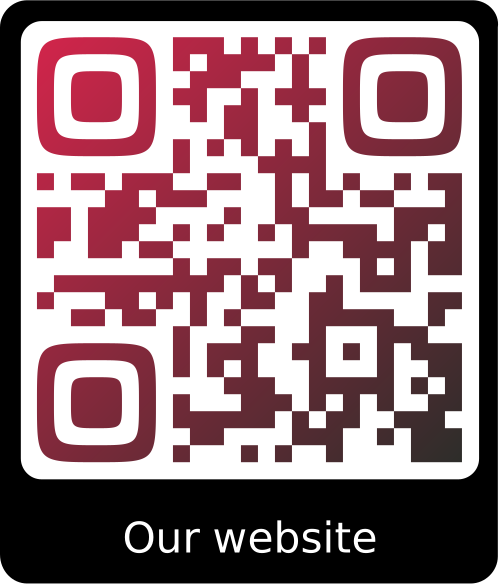
A sample URL QR Code generated with QRUpp. For print, use a minimum size of 25–35 mm for reliable scanning.
FAQ
URL QR Codes: FAQs
Static URL QR codes don’t expire. If you use a dynamic short link, it remains active while your link and account are in good standing.
Not for static URL QR codes. To change destinations without reprinting, use a dynamic short link and pair it with a Dynamic QR code.
Use SVG for crisp print at any size, PNG/JPG for general digital use, and WEBP for modern web performance.
Tracking requires a dynamic short link that records scan events. Pair your URL QR code with a Dynamic QR code to see device and time-based metrics.
QR Code Types
Create QR codes for any use case
From simple links to payments and events, generate QR codes tailored to your needs.
Not sure which QR code you need? Read our complete guide to QR codes for business to understand how they work and when to use each type.
Get Started
Create your URL QR Code in seconds
Open the URL QR Code generator, customise your design, and download a print-ready QR code in just a few clicks.