Create WiFi QR codes that let users join your network in one scan. Add SSID, encryption type, password, and hidden SSID. Perfect for cafés, offices, events, and guest WiFi.
Create WiFi QR codes that let guests join your network with a single scan. Encode SSID, encryption and password once, then print or display the code anywhere you need fast, frictionless access.
What is a WiFi QR Code?
A WiFi QR code stores the details of your wireless network so that people can join by scanning instead of typing a password. Supported fields include:
- SSID – your WiFi network name
- Encryption – WEP, WPA/WPA2, or no password
- Password – your WiFi key (if required)
- Hidden – whether the network broadcasts its name
When a compatible device scans the code, it offers to connect using the stored details.
How WiFi QR codes work
- You create a WiFi QR code with your SSID, encryption type and password.
- The QR encodes this data using the standard
WIFI:format. - When someone scans it, their device reads the details and prompts them to join the network.
This removes the need to spell out passwords, retype long keys or share sensitive credentials verbally.
Create a WiFi QR Code in QRUpp
- Log in to your account and click Links in the left-hand menu, then Create Link.
- Select WiFi at the top of the page.
- Enter a meaningful name for your QR code.
- Enter your WiFi details: SSID, Encryption type, Password, and whether the WiFi is hidden or not.
- Choose the style, colours, frame, foreground/background images, and optional logo.
- The preview updates in real time as you adjust settings.
- Click Generate to save your QR code.
- Download as SVG, PNG, JPG, or WEBP, or print to hard copy or PDF.
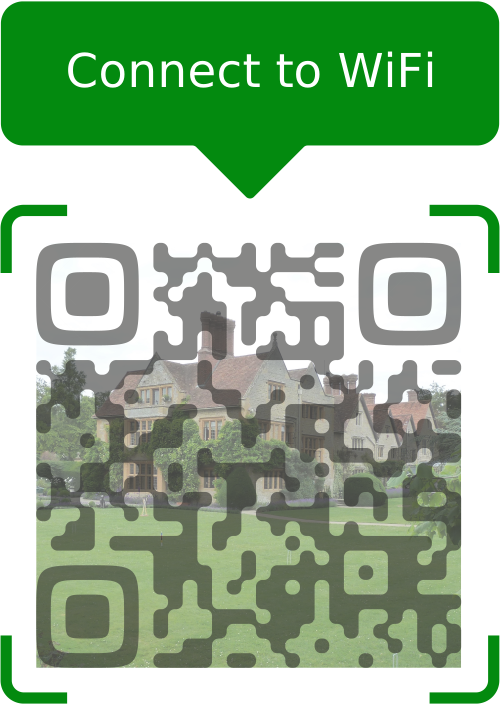
Example Output
Best uses
- Homes: share guest WiFi without revealing your password aloud.
- Cafés & restaurants: print WiFi codes on menus, table tents or receipts.
- Offices: provide visitor WiFi access in reception or meeting rooms.
- Hotels & rentals: add WiFi QR codes to welcome packs or room cards.
- Events & venues: show WiFi access codes on signage or slides.
Tips for secure, reliable WiFi QR codes
- Use a guest network instead of your primary WiFi where possible.
- Choose strong passwords even for guest networks.
- Update and reprint codes if you change SSID or password.
- Test the QR code on multiple devices (iOS and Android).
- Place the code somewhere visible but not easily photographed from outside.
Unlimited QR code scans - always
WiFi QR Code: FAQs
The QR code stores your password as text in the WiFi connection string. Most users will only scan it, but someone with a QR reader app could decode and see the password. For this reason, we recommend using a guest network.
QRUpp supports WEP, WPA/WPA2 and networks with no password. Make sure the encryption setting you choose matches your router configuration.
Yes, as long as you mark the network as hidden when creating the QR code, compatible devices can still join using the stored SSID and password.
Yes. WiFi QR codes are created via the Links section in QRUpp, which requires an account so that your configurations and designs can be saved and managed.
You can change your router password at any time, but you’ll need to update and reprint your WiFi QR code so that it matches the new credentials.
Get started
Set up a guest or public WiFi network, generate a QR code in QRUpp, and make it effortless for people to get online.
Not sure which QR code you need? Read our complete guide to QR codes for business to understand how they work and when to use each type.